FUTMARKET.APP / FC27
FC27 Smart Trader guide: one-click BIN, bulk fodder and BID
Smart Trader turns saved EA searches into reusable plans. Start with a quick personal BIN snipe, use a live rating group for fodder, then review the plan and safety limits before starting any run.
Real English UI crops. The safety-review page is intentionally not shown. Click an image to enlarge; the live plugin follows your selected language.
Open the workbench and choose a mode
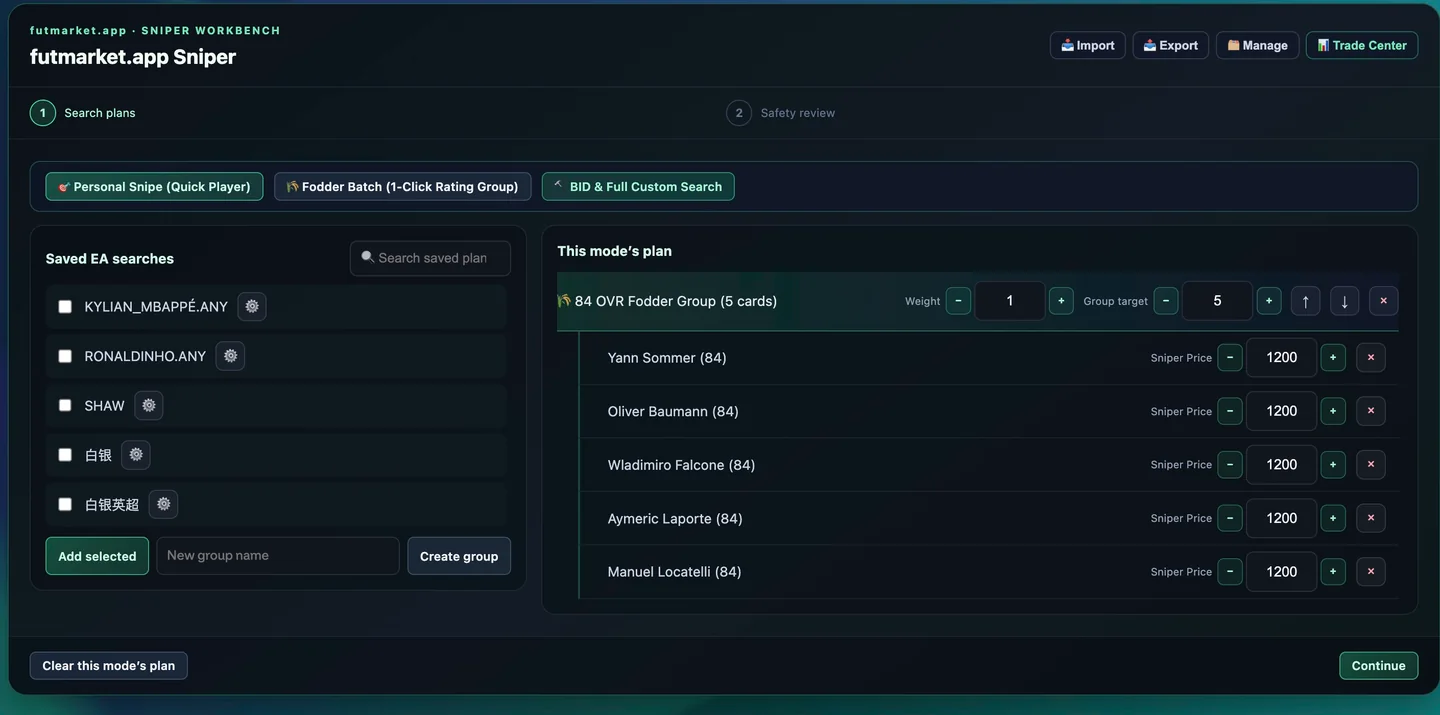
Open Smart Trader from the left menu. The workbench has three entry points: Personal Snipe for one player, Fodder Batch for a rating group, and BID & Full Custom Search for bids or detailed filters.
Each mode keeps its own plan. Import and Export move reusable plans between sessions; Manage handles saved groups. A plan only becomes a running search after you review it and continue to the safety step.
One-click BIN: quick personal search
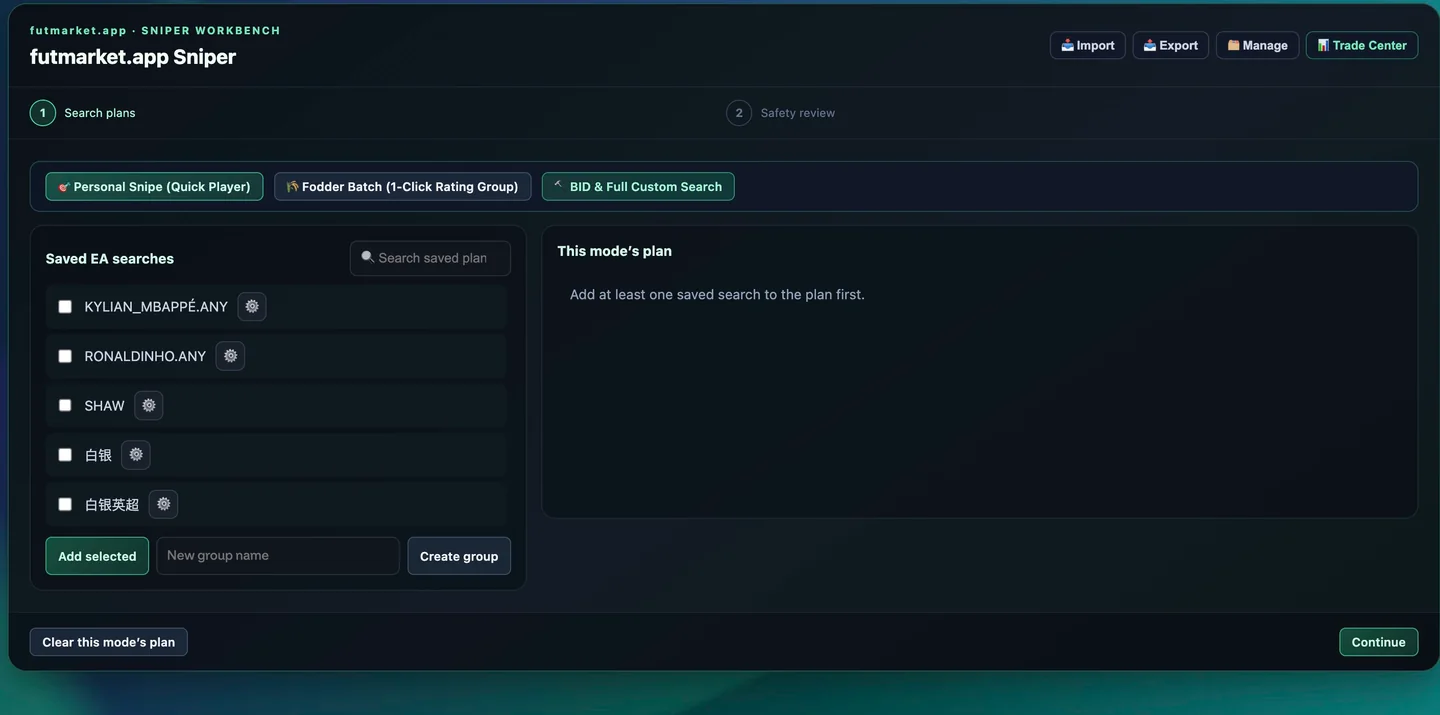
Choose Personal Snipe, enter the player, select the card version, and choose Fixed BIN Price or a real-time price percentage. Search Max BIN limits which listings appear; Max Buy Now is the highest BIN the plugin may purchase.
Set Target Cards, then click Save & Add to Current Plan. Leave either price empty or at 0 only when you intentionally want no limit. Check the exact player version and platform before continuing.
Bulk fodder: generate a live rating group
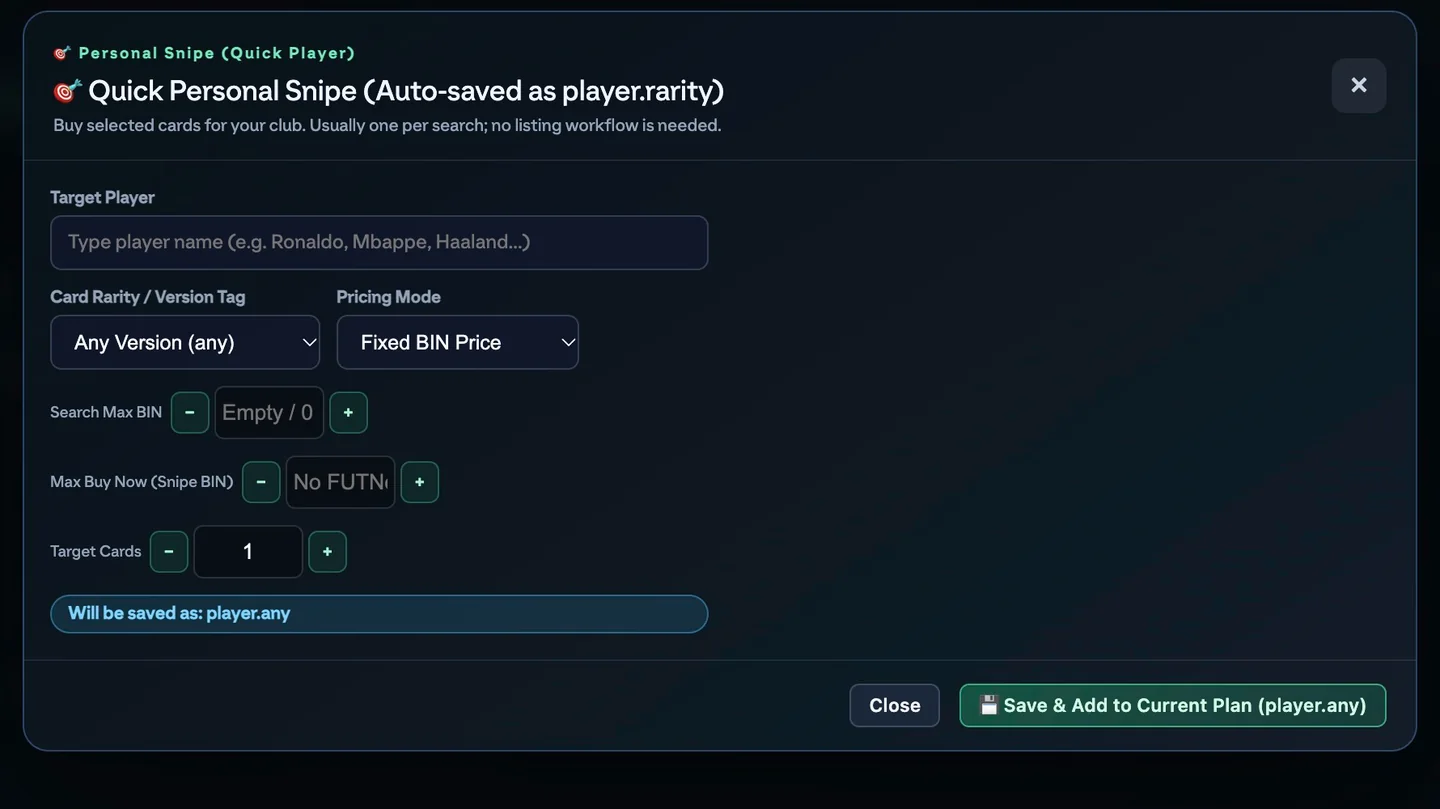
Choose Fodder Batch. Pick the common or full rating range and a rating. Refresh the live floor, choose 5 to 10 distinct players, and review Search Max BIN, Buy Max BIN, and the total quantity to buy.
The CPP table shows floor price divided by official SBC item score, so a lower CPP buys the same points for fewer coins. Set the post-purchase action and loss protection, then click Generate Fodder Group & Add.
Review the generated plan before running
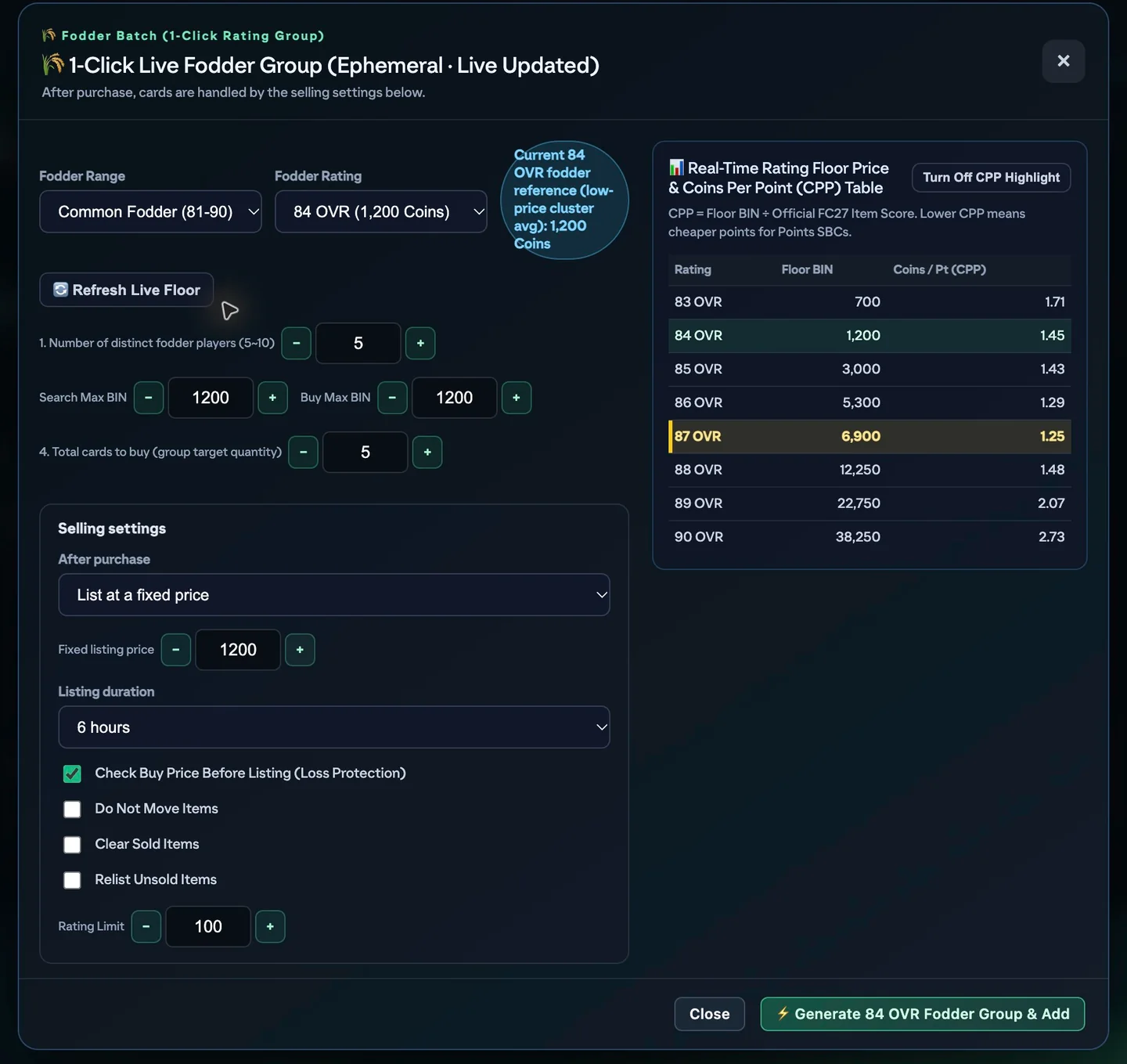
The generated fodder group appears under This mode’s plan with its group target and one editable Sniper Price per player. Weight controls how often its searches share the run; arrows reorder search priority.
Remove a player or clear the whole mode plan if needed. Continue leads to the safety review and does not itself buy cards.
BID and advanced filters
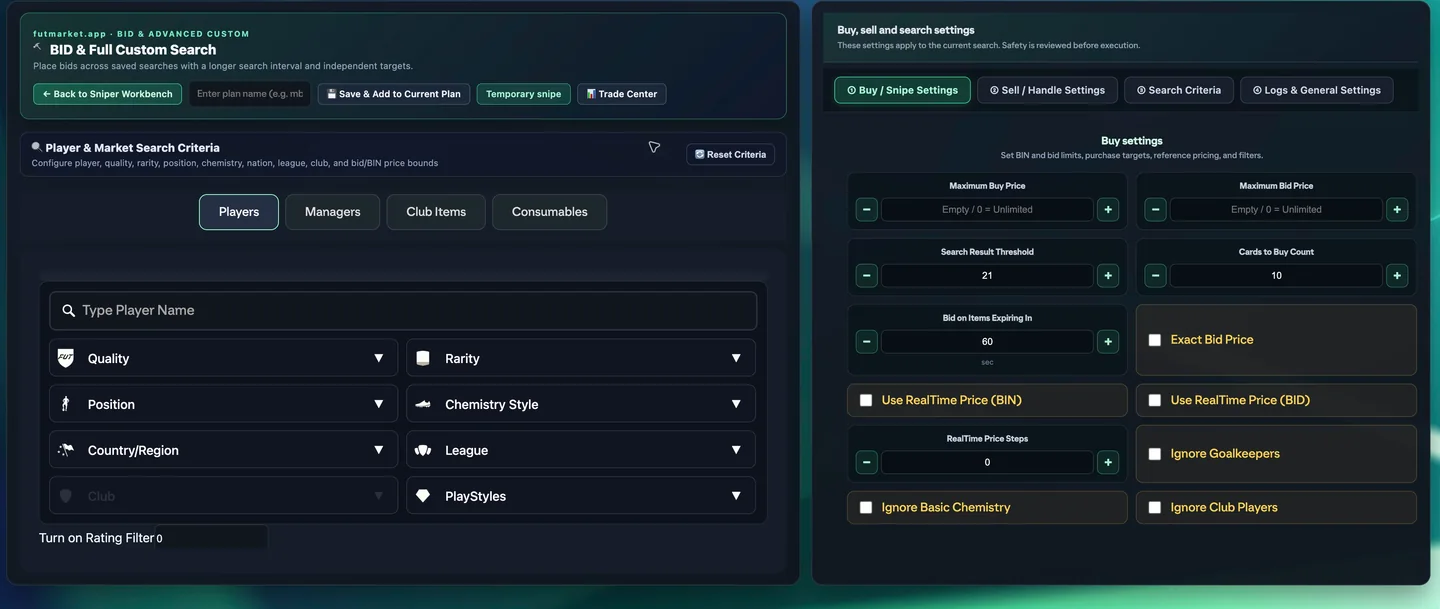
Choose BID & Full Custom Search for auctions. Filter by player, quality, rarity, position, chemistry style, nation, league, club, PlayStyles, and both Bid and Buy Now ranges.
BID is not a one-click purchase: it places a pending bid and only a winning auction becomes a bought card. Set Maximum Bid Price, Items Expiring In, target count and delay. Save & Add stores a plan; Temporary snipe uses the current search without saving it.
Logs and general settings
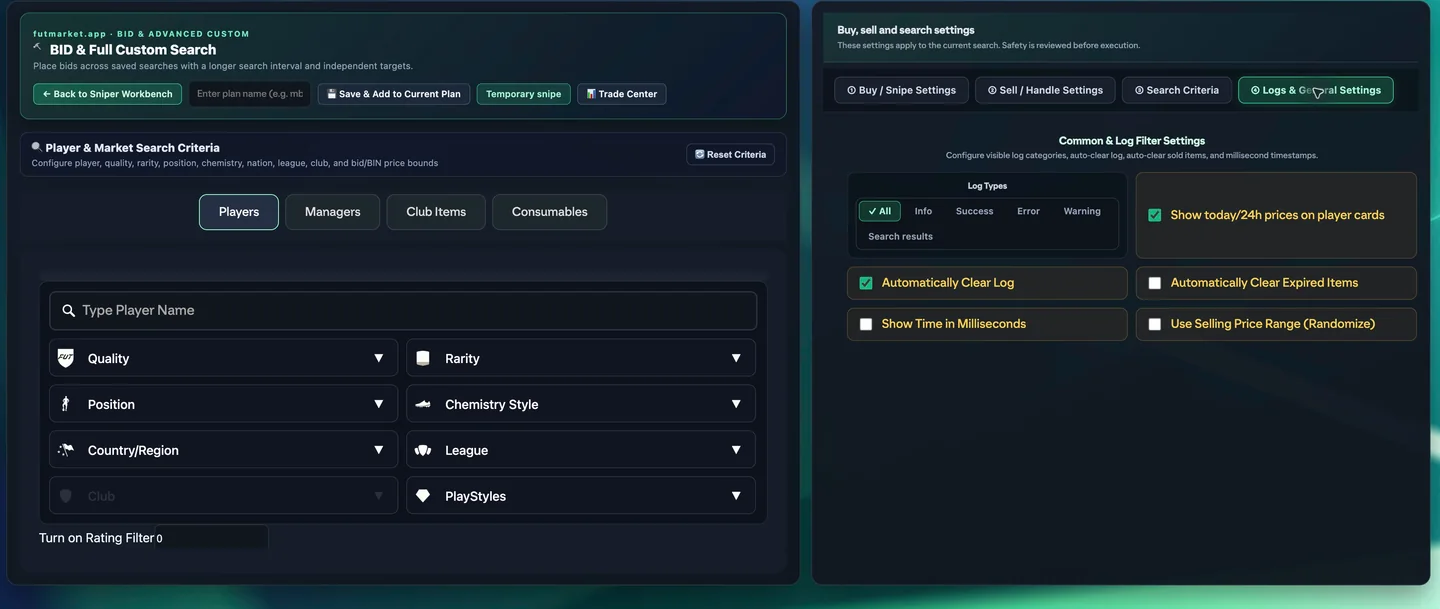
Select Logs & General Settings to choose the log types shown: Info, Success, Error, Warning and Search results. You can also enable today/24h price badges, automatic log cleanup, expired-item cleanup and millisecond timestamps.
In older plugin builds this tab opened Search safety because the custom tab used the wrong native index. The fixed build opens Common & Log Filter Settings. If you still see the old behavior, update and reload the plugin.
Review the safety step without skipping it
Continue opens the safety review. The tutorial intentionally has no screenshot of that page. Check search wait, stop time, pause cycle, bid spacing, purchase limit, and the error codes that should stop the run.
Starting the runner performs live EA requests and can spend coins or place bids. Stop prevents later actions but does not undo a completed BIN, bid or listing. If one action is uncertain, inspect Unassigned and the transfer list before retrying.
Save plans and handle common issues
A saved search must be added to the current mode plan before Continue. If a reference price is unavailable, enter the BIN manually or refresh. Be especially careful that 0 means unlimited, not zero spending.
Use Import/Export for backups and Manage for saved groups. If the wrong player version appears, clear the plan and confirm rarity, rating and platform before starting again. Never treat BID as an immediate purchase or a completed action as reversible.